Getting started
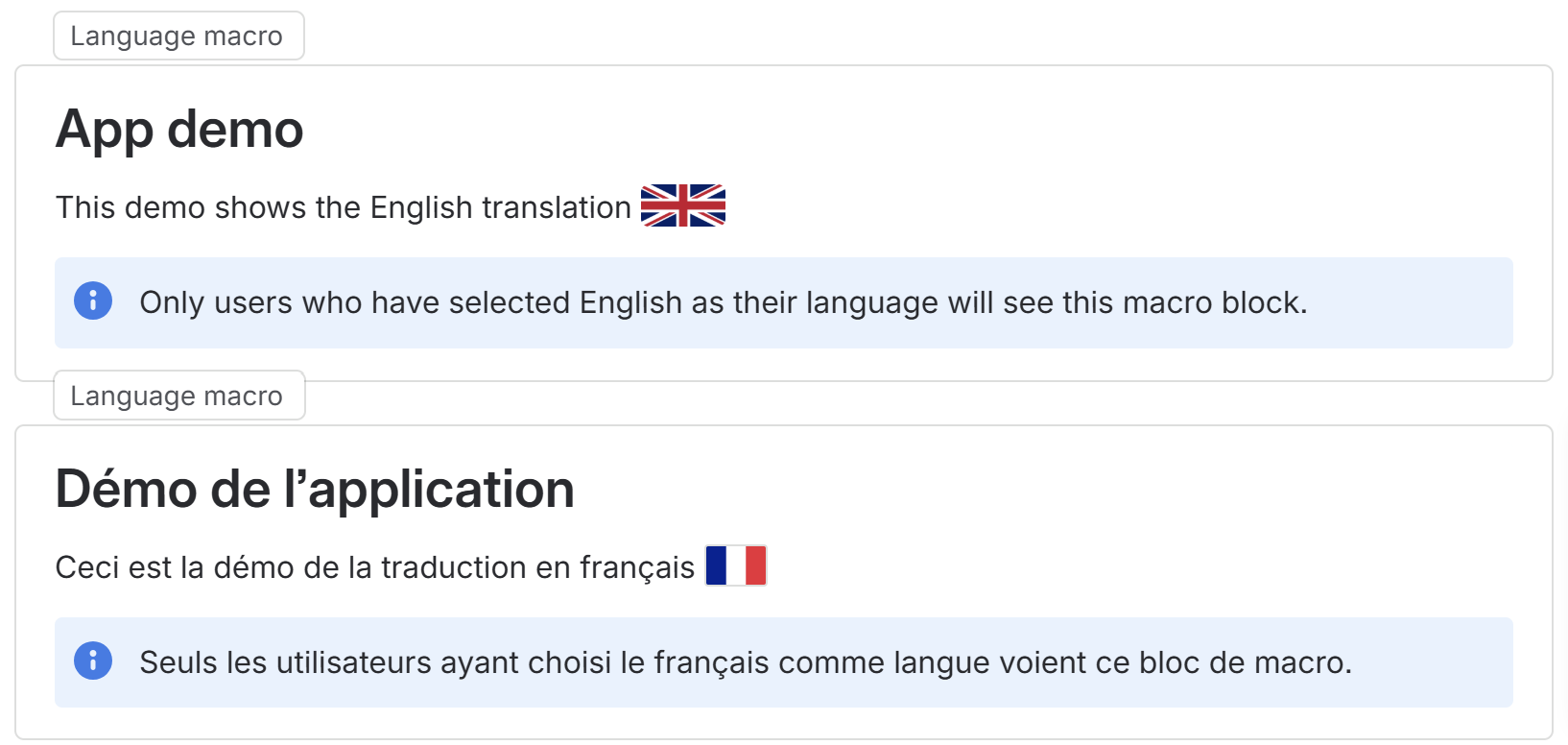
One macro = one language, one translation. You put several in the same page, and each reader only sees theirs.
How to use
- Create a page and give it a title. It is shared by every language - see feature details.
- Insert the macro: type
/and pick Language macro, or use the editor's+menu. - Choose its language. The settings panel opens with the language list already showing. Pick one, then Save.
- Write your text inside the macro, exactly as you would anywhere in Confluence.
- Add the second language: insert another macro, set it to your second language, and write the translation.
- Publish.
Under the page title you will now see Select language. That is where a reader switches.
Check the result
Open the page in view mode. You see one language only - yours, if it is on the page. Click Select language to switch: the page reloads in the chosen language, and the address does not change.
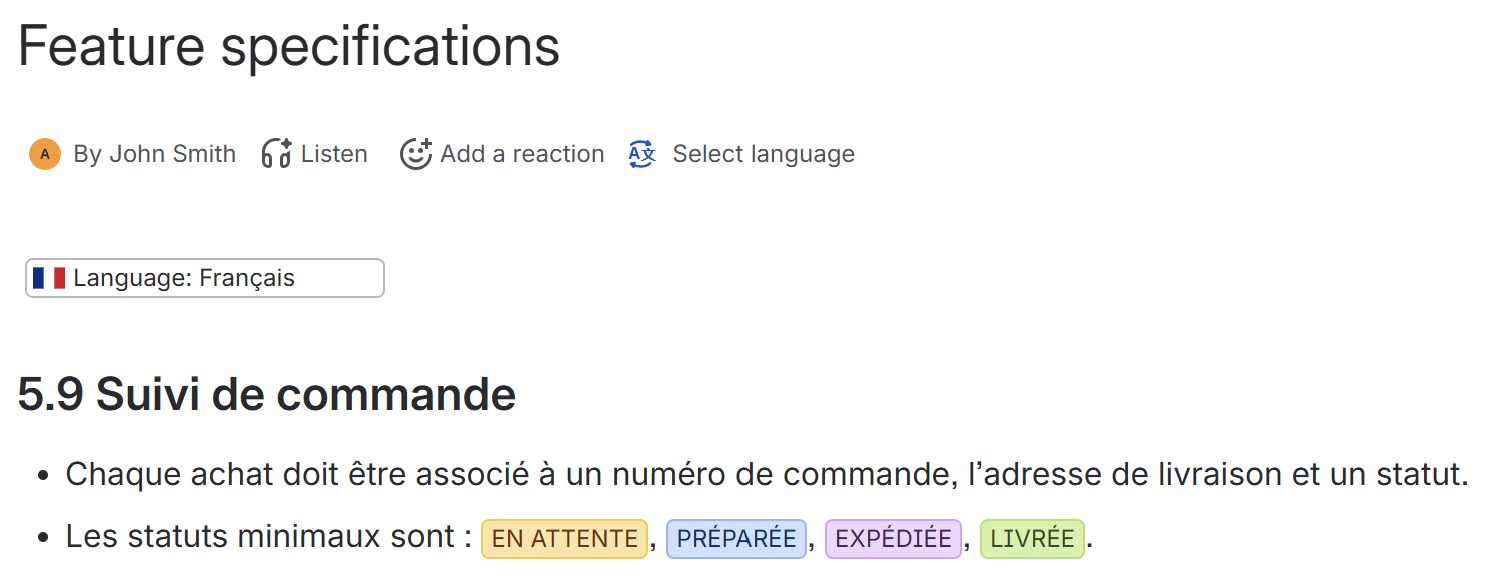
That is exactly what your readers will see.
What a reader sees
They configure nothing. Their language is picked automatically, in this order:
- the language they chose themselves on this page, if they did;
- their Atlassian account language - the normal case;
- the language marked as the page default;
- failing that, the first language on the page.
The advice worth passing on to your teams: set your language in your Atlassian profile. Everything then falls into place with no clicks, on every page.
The switcher under the title is for the exceptions - reading in another language, or when yours is not on this page. The choice is remembered for that page only.
Advanced macro settings
Beyond its language, a macro has two optional settings - a macro with only its language set works perfectly.
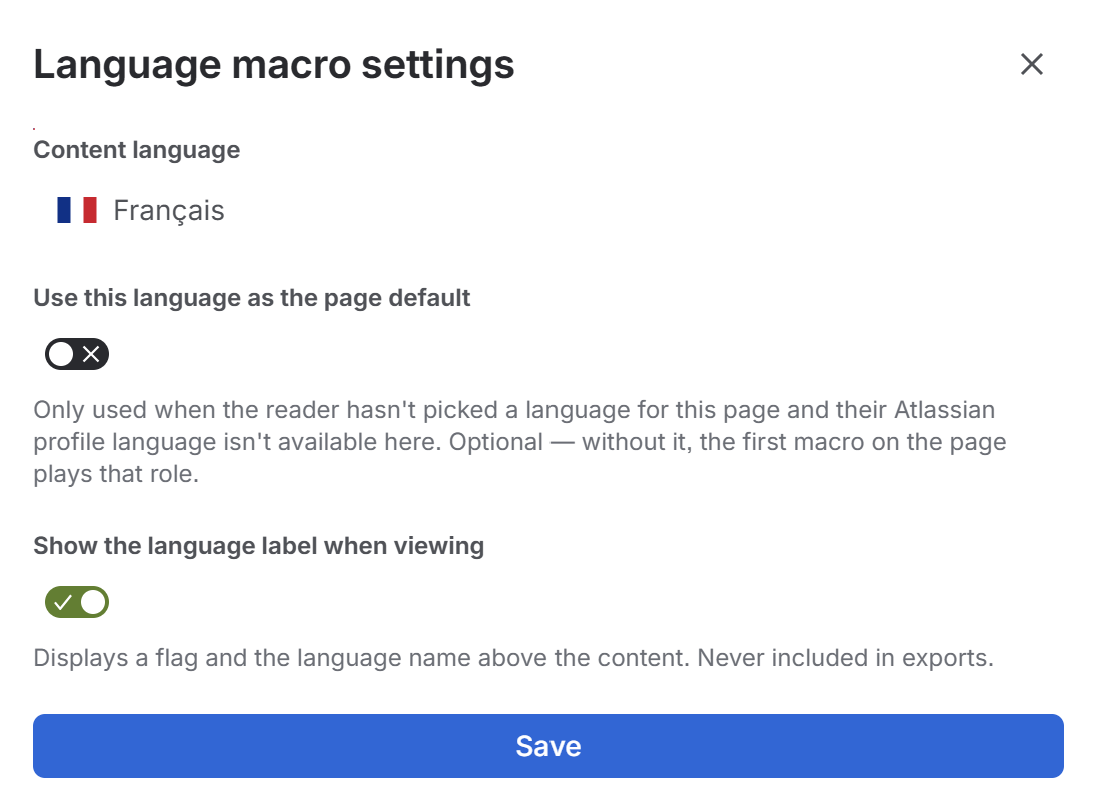
Use this language as the page default
This only comes into play third. It applies when the reader has chosen no language for this page and their Atlassian account language is not available on it.
In other words it never overrides a reader's choice, nor their profile language: it is a safety net, not an imposed preference.
You are not required to set one. Without it, the first macro on the page plays that role, which is usually what the author intended. Only one macro should carry the setting; if several do, the app tells you.
Show the language label when viewing
Displays a flag and the language name above the content. On by default.
Turn it off if the visual marker gets in the way. It never appears in exported documents either way.
Anything the app shows you along the way - in the Select language panel, in edit or view mode - is listed with what to do about it on the application messages page.
For language order, page titles, keyboard use and other advice worth passing on to your authors, see best practices.